← Back to Cold is Cool
Parent & guardian guide
How to Redeem Your Cold is Cool Passport
There are two easy ways to use the Passport: redeem in person when you arrive, or choose a future date ahead of time. Here is exactly what to do.
Choose the right method
Redeem Now or Redeem Later?
At the ski areaRedeem Now
Use this only when you are physically at the ski area ticket window or cashier counter.
See in-person steps ↓
Planning aheadRedeem Later
Choose a future visit date in the app and receive a PDF voucher by email before you go.
See future-date steps ↓
1
In-person redemptionRedeem Now
Wait until you reach the ticket window before completing this redemption.
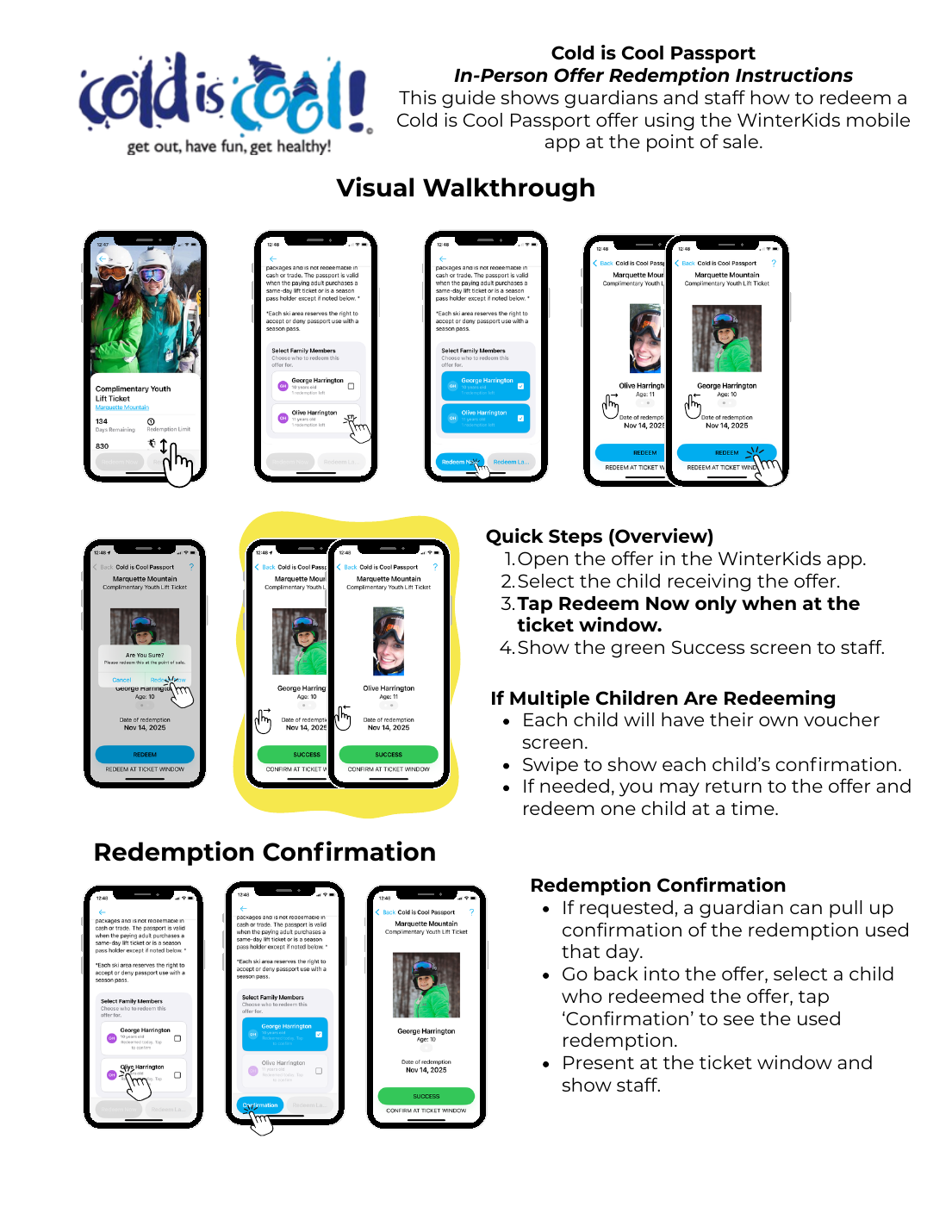
- Open the offerLog in to the WinterKids mobile app and open the Cold is Cool offer you want to use.
- Select your childChoose the child receiving the offer. You can select multiple children when applicable.
- Tap Redeem NowOnly do this when you are physically at the ticket window.
- Show the Success screenPresent the live voucher in the app so staff can verify the photo, date, offer and green SUCCESS bar.
Don't use a screenshot. Keep the live voucher open in the WinterKids app for staff to verify.
More than one child? Each child has their own voucher screen. Swipe left or right to show each confirmation. If needed, redeem one child at a time.
2
Future-date redemptionRedeem Later
Use this option when you already know the date your child will visit.
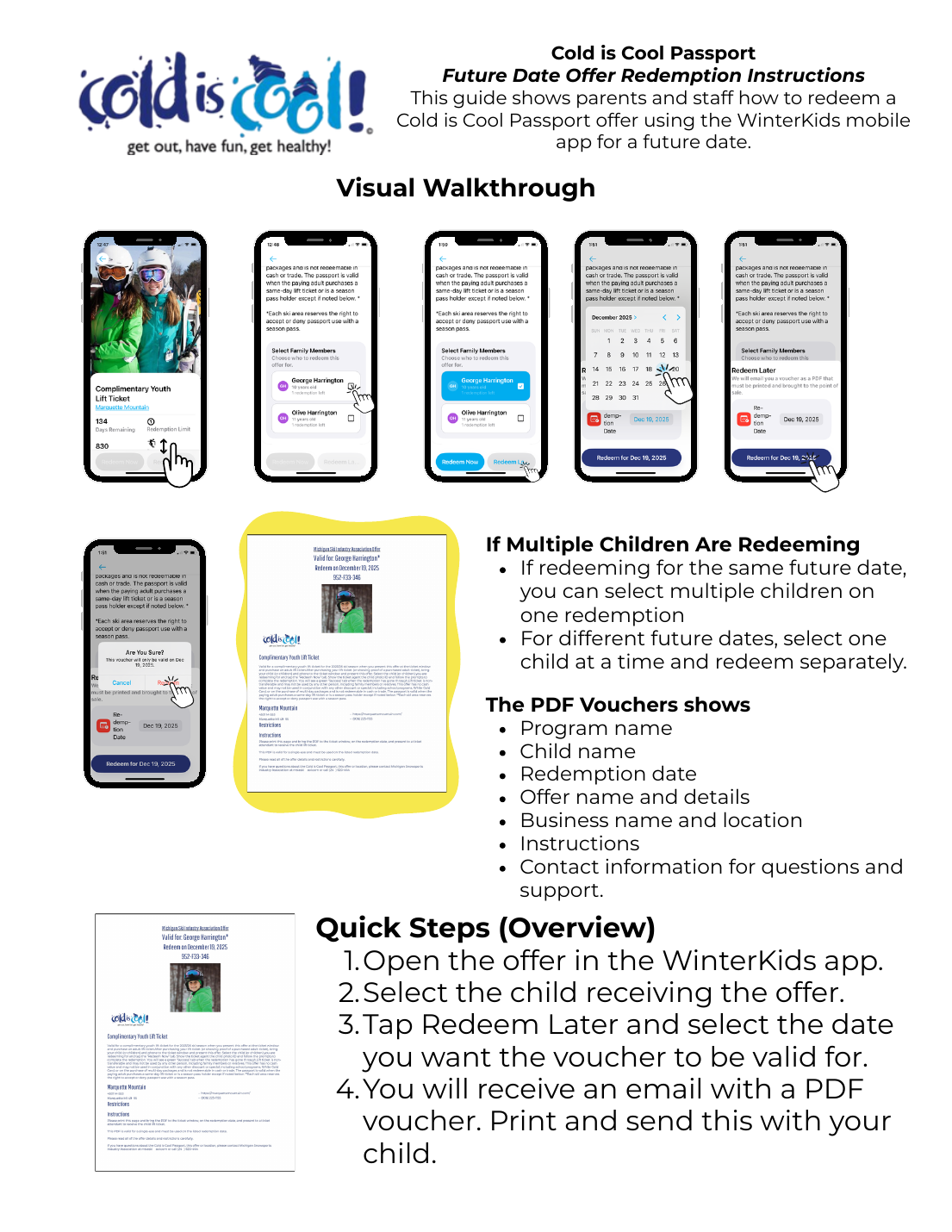
- Open the offerLog in to WinterKids and choose the Cold is Cool offer you plan to use.
- Select your childSelect all applicable children if they are visiting on the same future date.
- Tap Redeem LaterChoose the date you want the voucher to be valid and confirm the redemption.
- Check your emailA separate PDF voucher will be emailed for each child.
- Bring the voucherPrint the PDF and send it with your child, or have it available as required by the participating ski area.
Different dates? Redeem one child at a time. Before your visit, make sure the PDF shows the correct child, ski area and redemption date.
Need to show it again?Pull up an in-person confirmation
If staff asks to see a redemption you completed that day, go back into the offer, select the child who redeemed it, tap Confirmation, and show the completed redemption at the ticket window.
Need help?
Questions happen. We've got you.